CueSift取幕
Apple-documented Final Cut workflow

How to Add Subtitles in Final Cut Pro by Importing an SRT

Apple's documented path is File, Import, Closed Captions. Select a valid SRT, assign its caption role and language subrole, choose how its timing should be inserted, then inspect the caption lane Final Cut creates above the timeline.

Published: August 11, 2026Last verified: August 12, 2026

Short answer

In Final Cut Pro, choose File > Import > Closed Captions and select a valid SRT file. In the import options, choose the caption role and language subrole, then select Relative to Timeline or Absolute according to the SRT's timing basis.

After import, Apple says the captions appear in a lane at the top of the timeline. Compare the first, middle, and final cues with the exact video cut before styling, editing, or exporting.

Try CueSift with a public link

Evidence disclosure

The workflow and interface terms are verified against Apple's current Final Cut Pro User Guide. The visual below is an official Apple Support image, not a CueSift application test. The downloadable SRT passes local structure checks, but Final Cut Pro is not installed on this Mac and the exact sample has not been imported there. Verify the import and final deliverable in your installed version.

Prepare the SRT and project

A successful import can still produce the wrong result if the file, project, language, or timing basis does not match. Confirm these inputs before opening the import dialog.

Matching edit

The same intro, edits, speed, and ending used to create the SRT.

Valid plain-text SRT

Sequential cues, common timestamps, readable UTF-8, and a real .srt extension.

Caption role and language

A role and language subrole that describe the imported track.

Known timing basis

Enough source information to choose relative or absolute insertion.

What the caption lane looks like

Apple's current reference shows caption language subroles above the primary video and audio timeline. The active language is highlighted in the timeline and displayed in the viewer; other language lanes can remain visible or hidden.
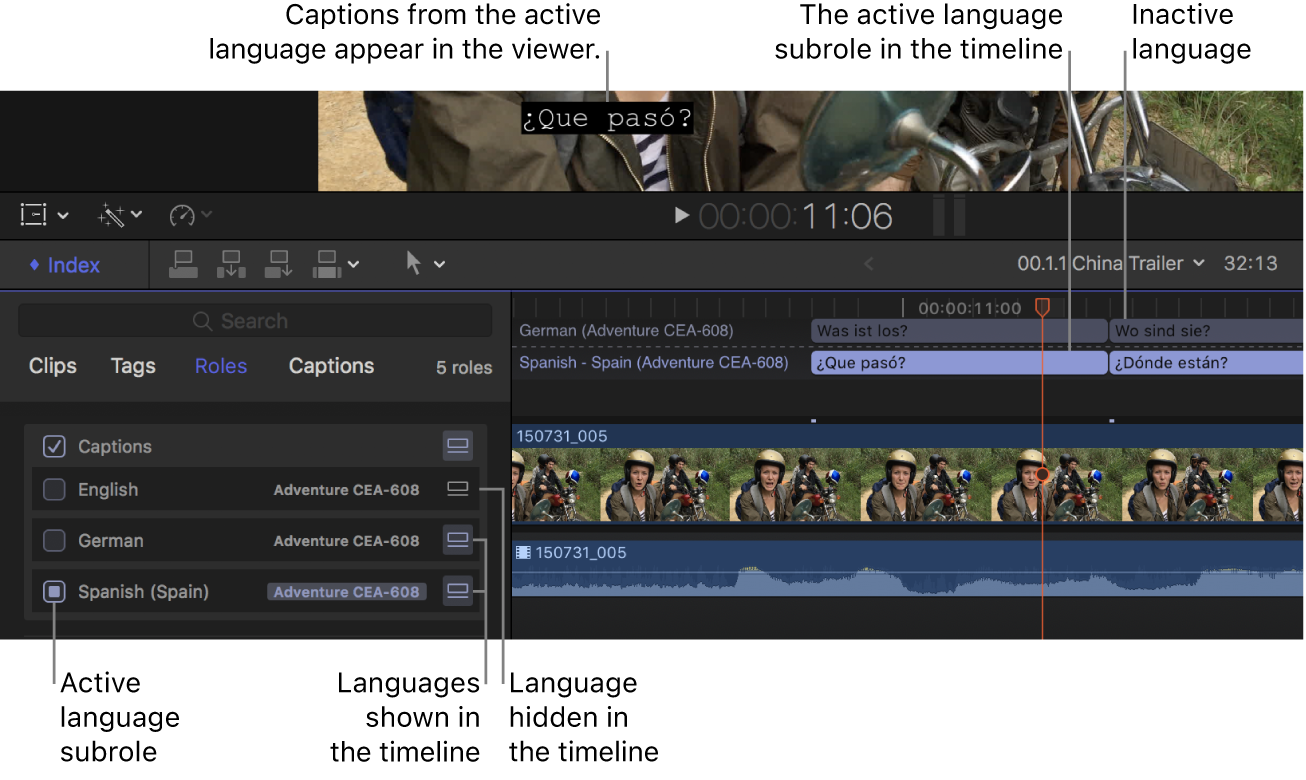
Official Apple Final Cut Pro screenshot showing captions in the viewer, language subroles, and caption lanes above the video timeline
Official Apple Support image showing active and inactive caption languages in the timeline. Documentation reference only; not a CueSift SRT import test. Checked August 12, 2026. View the source on Apple Support

Download the SRT import sample

This three-cue UTF-8 file was written for this guide. A repository test checks its sequence numbers, timestamp pattern, forward ranges, text, and separators. That establishes file structure, not Final Cut compatibility.

Download the sample SRT
1
00:00:01,000 --> 00:00:03,800
This original sample is prepared for a Final Cut import check.

2
00:00:04,100 --> 00:00:07,000
Choose the correct role, language, and insertion timing.

Import the SRT into Final Cut Pro

The sequence below follows Apple's current user guide. Keep a copy of the project and source file before testing a timing option you are not certain about.

  1. 1

    Open the correct project and timeline

    Confirm that the active timeline contains the video cut the SRT was timed against.

  2. 2

    Choose File > Import > Closed Captions

    Use Apple's documented caption-file import command and select the valid .srt file.

  3. 3

    Assign the role and language

    Choose the caption role and language subrole that describe the track.

  4. 4

    Choose the insertion timing

    Select Relative to Timeline or Absolute according to how the SRT timestamps were authored.

  5. 5

    Complete the import and inspect the lane

    Apple says imported captions appear in a dedicated lane at the top of the timeline.

Relative to Timeline vs Absolute

This is a timing-basis decision, not a preference for one universally safer option. Use the source information and test a copy when the intended basis is unclear.

Relative to Timeline

Use relative timing when the caption intervals are intended to be placed from the timeline start. Verify the first cue's expected location before trusting the rest.

Absolute

Use absolute timing when the file's timestamp values must retain their absolute timeline positions. Confirm the project's time reference before importing.

If the first cue lands far from its expected scene, stop and verify the source timing basis before moving every caption manually. Test in a duplicate project or timeline when possible.

Review the imported caption lane

Import is only the transfer step. Review the captions as editorial content and as timed objects before export.

First, middle, and last cue

Check for a fixed offset or drift across the full cut.

Text accuracy

Verify names, numbers, punctuation, speakers, and sound cues.

Role and language

Confirm the imported captions are organized under the intended metadata.

Overlaps and gaps

Inspect rapid exchanges and unintended intervals without captions.

Viewer rendering

Watch representative long and short captions over the actual picture.

Delivery requirements

Confirm the destination format, language, and caption expectations before export.

Fix common import and sync problems

The file cannot be selected

Confirm the complete .srt filename, plain-text structure, readable UTF-8, and a local file you can reopen.

Captions begin at the wrong place

Verify Relative versus Absolute and compare the SRT's first timestamp with the project's time reference.

The offset is constant

Confirm the video cut, then adjust the lane only if the same difference persists at the beginning, middle, and end.

Drift grows over time

Look for a different source cut, speed, or timing basis. One global move cannot fix increasing drift.

Characters are garbled

Repair a copy in a plain-text editor, save as UTF-8, reopen it, and import that verified copy.

The wrong language or role was assigned

Correct the organizational metadata before handoff so editors and export workflows identify the track correctly.

For source-level repairs, keep the original and use the SRT editing guide before importing a new copy.

Keep the matching media version

Record which export or edit the SRT matches so later project changes do not silently invalidate timing.

Document role and language

Use consistent metadata so the track remains understandable during editing, review, and export.

Verify the deliverable

Check the exported or handed-off result in its destination instead of treating the timeline alone as final proof.

Frequently asked questions

Can Final Cut Pro import SRT files?

Yes. Apple's current Final Cut Pro User Guide says the application can directly import SRT, iTT, and CEA-608 caption files.

Where do imported captions appear?

Apple says imported captions appear in a dedicated caption lane at the top of the timeline. Review that lane and the viewer against the matching video cut.

Should I use Relative to Timeline or Absolute?

Use the option that matches the timing basis of the SRT and project. Relative places caption timing from the timeline start; Absolute preserves the caption file's absolute time values. Test a copy when the source basis is uncertain.

Why are the imported subtitles out of sync?

The SRT may match another edit, the wrong insertion-time option may have been selected, or the file may contain an offset or growing drift. Compare the first, middle, and last cues before moving the entire lane.

Is the Final Cut Pro screenshot from a CueSift hands-on test?

No. It is an official Apple Support image used to show the caption lane, active language subrole, and viewer result. The downloadable SRT passes CueSift's local structure checks, but Final Cut Pro is not installed on the test Mac and the exact sample has not been imported there.