How to Add Subtitles to a YouTube Video with an SRT File
YouTube's current upload path starts in Studio: open Subtitles, choose the video, add a language, select Add, then upload a file. This guide focuses on the safer SRT-with-timing workflow and the checks to complete before you save or publish the track.
Hands-on test disclosure
On August 12, 2026, we uploaded an original 12-second test video as Unlisted in an authorized YouTube Studio account. Studio parsed and published the valid three-cue SRT, rejected the deliberately broken copy with “Unable to parse selected file,” and published the repaired replacement. The normal watch page had not exposed the new tracks during our immediate post-publish check, so the article treats player verification as a required final check rather than claiming instant propagation.
Before you open YouTube Studio
Prepare the track and the account context first. This prevents a correct upload flow from producing a mislabeled, mistimed, or inaccessible result.
Matching video cut
The SRT timing matches the published edit, intro, speed, and ending.
Plain UTF-8 SRT
The file reopens correctly and uses a normal .srt extension.
Correct language
The language selected in Studio describes the uploaded text.
Authorized access
Use the channel owner or an appropriate role, not shared credentials.
What the real Studio test showed
We used the same downloadable fixtures on an original unlisted test video. These screenshots document the platform response; they do not substitute for checking your own video cut, language, and final player output.
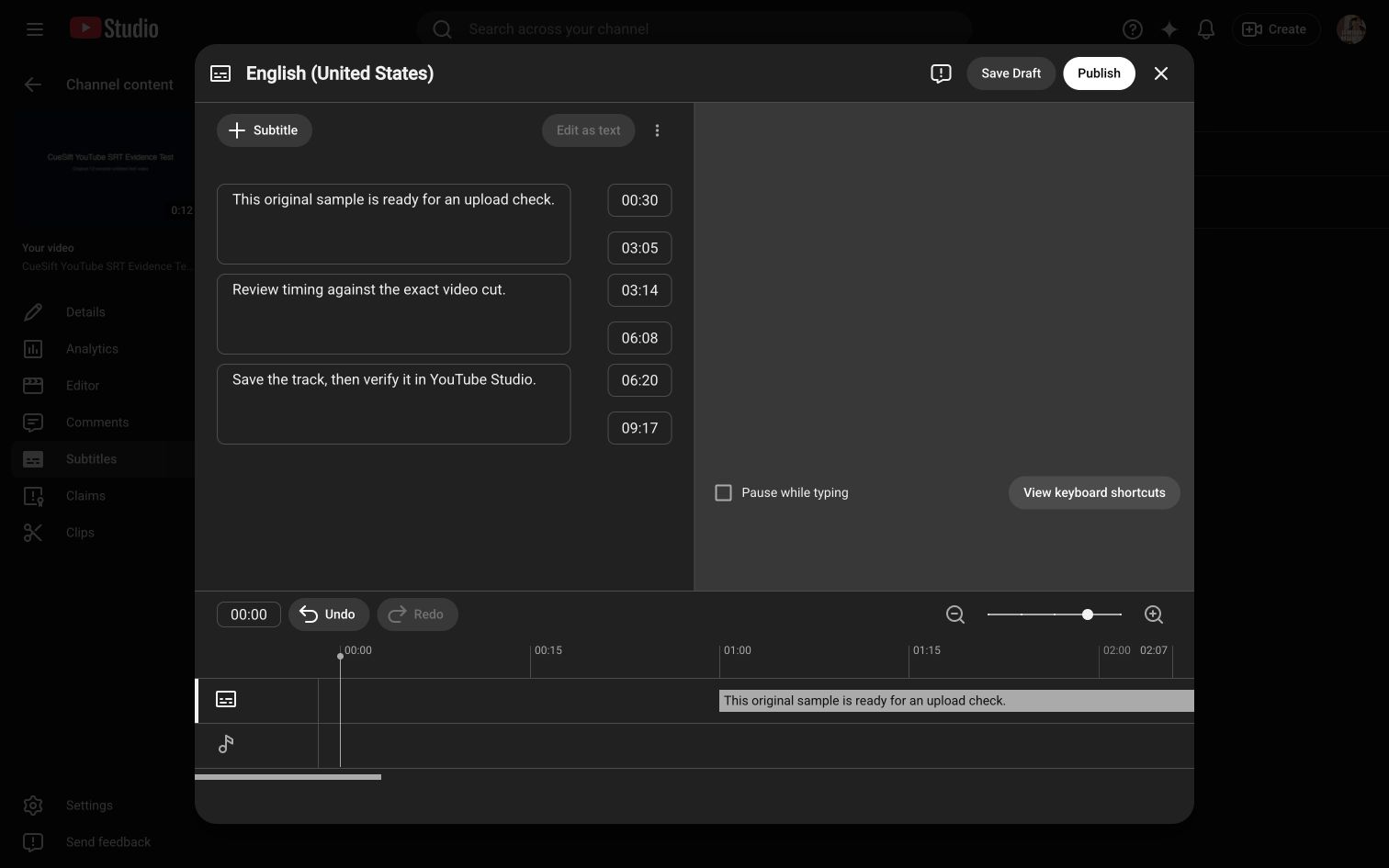
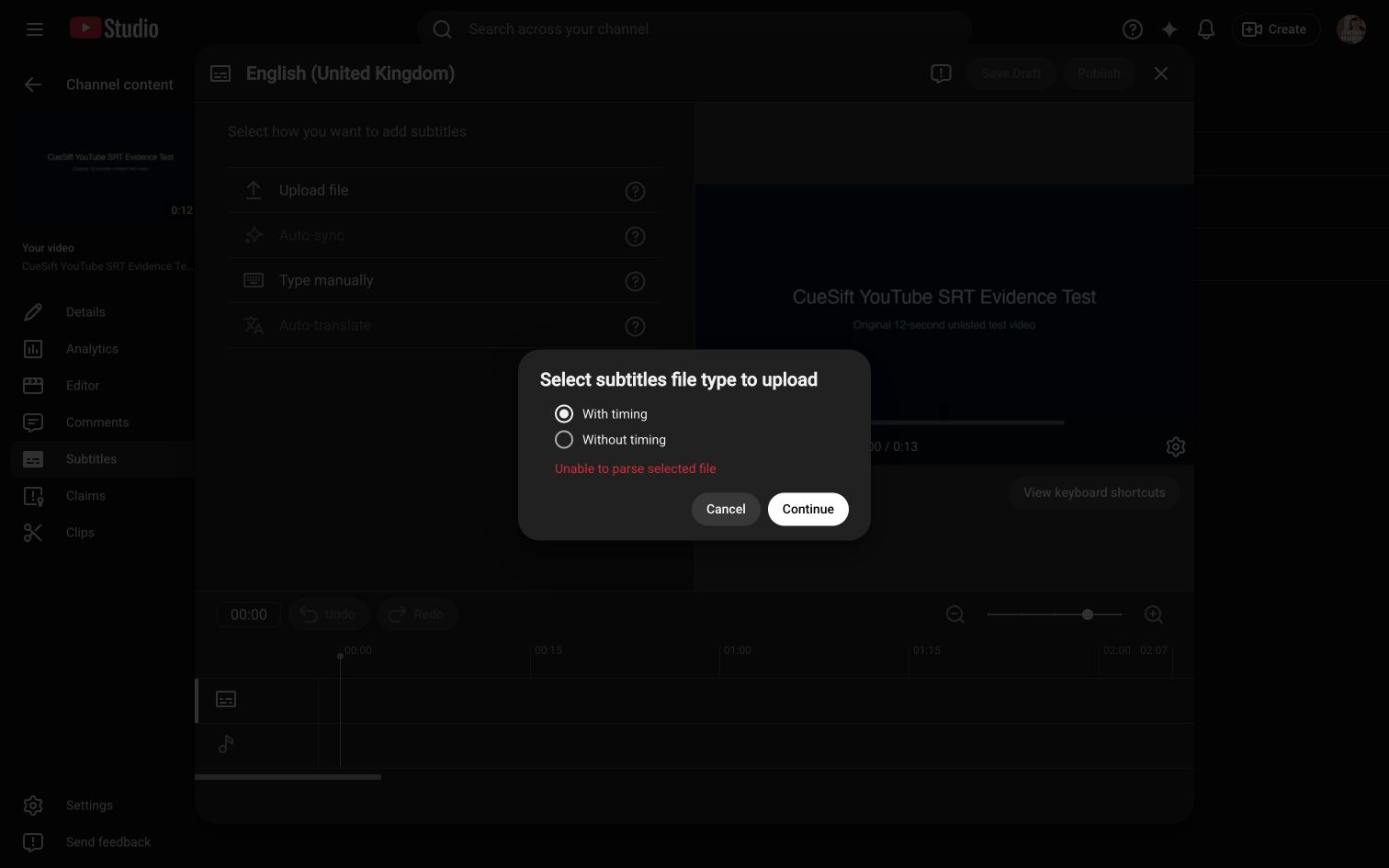
Upload the SRT in YouTube Studio
These labels follow YouTube's current help page. If your account receives a different interface experiment, use the Subtitles area and verify the selected video and language before choosing a file.
- 1
Open Studio and Subtitles
Sign in to the authorized channel, open YouTube Studio, select Subtitles, and choose the target video.
- 2
Add the track language
Select Add language, choose the language, then select Add in that language's Subtitles column.
- 3
Choose Upload file
Use the upload option rather than pasting text when you already have an SRT file.
- 4
Select With timing
Use With timing for the downloadable type of SRT because its cues already include start and end timestamps.
- 5
Choose, review, and save
Continue, select the file, inspect the imported text and timing, make corrections, then save the track.
Review the uploaded track before saving
An upload can parse successfully while the content remains wrong. Verify the track against the video and the intended audience.
Language and labels
The selected language matches the file, and translated text is not mislabeled as same-language captions.
Beginning, middle, end
Representative cues stay synchronized across the full video instead of only at the start.
Names and numbers
People, brands, dates, prices, measurements, and links match the source.
Reading and line breaks
Fast exchanges remain readable and line breaks do not split phrases awkwardly.
Sound information
Same-language captions include useful speaker and sound cues when accessibility requires them.
Player preview
The saved result is checked in the normal YouTube player, not only the editor.
Use channel permissions for a team
YouTube documents a Subtitle Editor role for collaborators who need subtitle access. Use an appropriate role and keep owner credentials private instead of circulating one login.
Verify after the track is saved
Open the ordinary watch page, choose the intended caption track, and sample the full timeline. If you later replace the video edit or subtitle source, repeat the verification rather than assuming the old timing remains valid.