How to Import an SRT File into Adobe Premiere
Adobe's current workflow is short: import the SRT as project media, drag it from the Project panel into a sequence, and review the caption track Premiere creates. The important work comes next—checking sync, text, language, styling, and export behavior before delivery.
Evidence disclosure
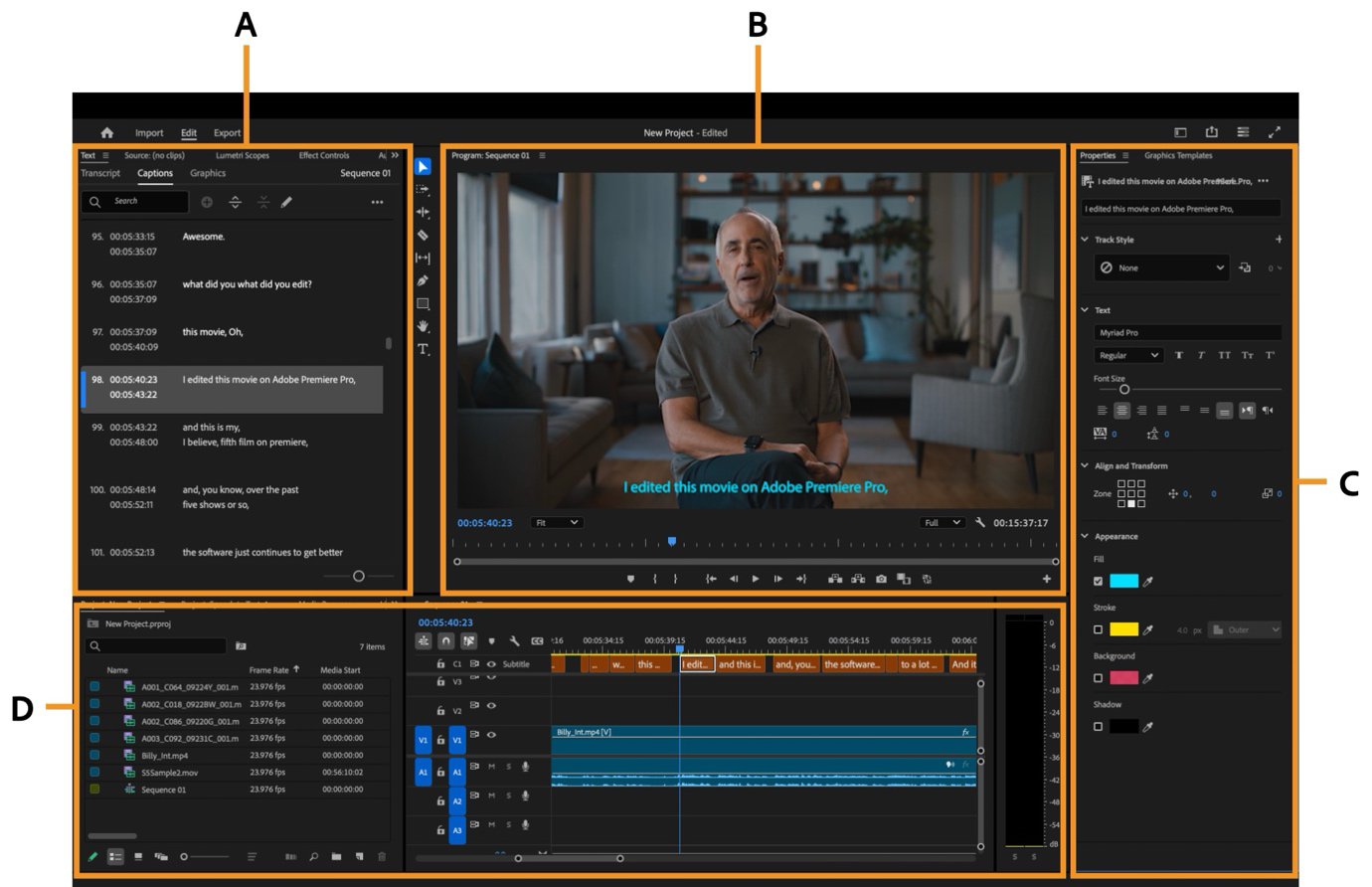
The workflow and interface labels are verified against Adobe's current Help pages. The visual below is an official Adobe documentation image, not a CueSift application test. Both downloadable fixtures are checked locally for SRT structure, but Premiere is not installed on this Mac and the exact files have not been imported there. Verify the result in your installed version before delivery.
Before you import
An SRT can be structurally valid and still be wrong for the edit. Match the subtitle file to the exact video version, then keep a backup before changing timing in Premiere.
Matching video cut
The same intro, edits, and ending as the SRT timing.
Readable UTF-8 text
Names, symbols, accents, and non-English characters reopen correctly.
Valid cue structure
Sequential numbers, common SRT timing lines, text, and blank separators.
Delivery decision
Know whether the destination wants burn-in, embedded captions, or sidecar text.
Find the caption controls in Premiere
Adobe's current workspace reference identifies the Text panel, Program Monitor, Properties and Graphics Templates panels, and Timeline. After the SRT creates a caption track, use these areas to review text, rendering, style, and timing.
Import SRT into Premiere in five steps
This original workflow diagram translates Adobe's short import instructions into a delivery checklist. It is a documentation-based diagram, not a screenshot of the current Premiere interface.
- 1
Export or prepare the SRT
Use a clean UTF-8 file with sequential cues, valid start-to-end timestamps, and text that matches the video cut.
- 2
Import it into the project
Use Premiere's normal media-import workflow so the SRT appears in the Project panel.
- 3
Drag it into the sequence
Drag the SRT from the Project panel to the sequence. Adobe says Premiere creates a new caption track and places the captions on it.
- 4
Verify text and timing
Check the first, middle, and final cues, then inspect names, numbers, line breaks, quick exchanges, overlaps, and drift.
- 5
Style and choose an export
Apply a caption-track style, then choose burn-in, a supported embedded path, or a separate sidecar according to the destination.
Evidence type: original workflow diagram. Method: Adobe documentation plus local SRT structure tests. Checked August 11, 2026. Refresh when Adobe changes caption import or export behavior.
Fix the problem before reimporting
| Symptom | Check first | Safer action |
|---|---|---|
| SRT does not import as expected | Extension, plain-text structure, timing arrow, and encoding | Repair a copy, then reimport it as a new project item |
| All captions are early or late | Constant offset and sequence start | Confirm the video cut, then shift the track only if the offset is consistent |
| Sync gets worse over time | Different source cut, speed, or timing basis | Do not fix drift with one global offset; compare source versions |
| Characters are garbled | UTF-8 save result and a plain-text reopen | Resave a backup as UTF-8 and verify names before import |
| Style is missing or inconsistent | Caption-track style in Properties | Apply a track style and preview the target frame size |
For structure-level repairs, use the SRT editing guide and keep the original file unchanged until the repaired copy has been verified.